
Servers
RightClick on the project and Add new Server Tag and Alarm-OPC server
Install DB
The following is a summary of the steps required to install SQL Server Express.
Step 1. In the FactoryTalk View installation package, open the Redist folder, which contains the software for SQL Server Express.
Step 2. Install the .NET Framework. The SQL Server Express installation fails without this component.
Step 3. Run the SQL Server Install batch file to install and configure SQL Server Express.
Step 4. Configure the Windows firewall if you want to allow for remote connections.
Alarm Server
1- Create DB
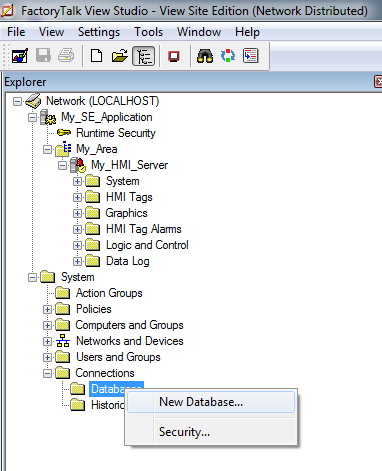
under System – Connections, right click on Databases and select “New Database”
Now fill in a new Definition Name, new Database User Name, and new Database name that you want View Studio to use when creating your FTAE Database and connection
2- Configure DB
The FactoryTalk® DB Connection Config Utility comes with FactoryTalk® Services Platform version 6.20. Use the utility to simplify access to a FactoryTalk® Alarms and Events database.
Go to the properties of FactoryTalk Linx (Right click and choose “Properties”). On the “General” tab, we will load the alarm server when the operating system initializes. On the “Alarms and Events tab”, be sure to enable the Alarm and events server
Trend
Using ODBC (Open Database Connectivity)
1- Right click on Data Log, select New
2- ODBC Data Source: A data source , in ODBC (Open Database Connectivity) terminology, is a user-defined name for a specific database or file system. That name is used to access the database or file system through ODBC APIs. Either user or system data sources can be cataloged. Select SQL Server as it is installed.
2-a) Server is Local- If not find it from the list
2-b) Accept default authentication.
2-C) Now select the DB
2-D) Test the Connection
3-Create Table – Just click on the button
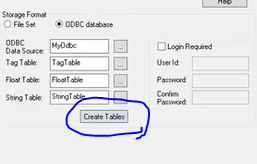
4- Path for backup and size management are not required, go to Log Trigger
5- Got Tags in Model and select all tag you want to add
6- Give a Name to this component Like Compressor1Trend etc
7- Now double click on System Command Line and type command: datalogon odbcdatalog and press enter
Factorytalk Historian: is designed for time series data log as long as the other DB is designed for event base
Note1: ODBC required to be started. Right click on the DataLog Model and start it
FactoryTalk Diagnostics
During application development, diagnostics messages are shown as you create, modify, and delete components, and when you test your graphic displays. The messages are shown in the Diagnostics List at the bottom of the FactoryTalk View Studio window. You can also view the messages in the FactoryTalk Diagnostics Viewer.
FactoryTalk DB Connection Config Utility does not establish a connection with Windows authentication if a Windows domain name ends by a format like .CA instead of .COM. Use this app incase you receive Access Problem
Note that DataLog and Alarm server are two different services
1: EnableLUA specifies whether Windows User Account Controls (UAC) notifies the user when programs try to make changes to the computer. You need to disable UAC
2: Event Viewer: The Windows Event Viewer shows a log of application and system messages, including errors, information messages, and warnings. It’s a useful tool for troubleshooting all kinds of different Windows problems. Factorytalk Diagnostics has a section in here
3: ODBC data source administrator tool is used for Managing ODBCs.
4: Microsoft SQL Server Management Studio is a software application developed by Microsoft that is used for configuring, managing, and administering all components within Microsoft SQL Server.
– click Connect Object Explorer and Enter Username and Password
– Right Click on server and select Server Properties. Security–> Server Authentication select SQL Server and Windows Authentication Mode
RapidScada V6
Rapid SCADA is an open-source industrial automation platform for building and managing control and monitoring systems. Support, custom development, and additional paid modules or plugins are their main sources of income.
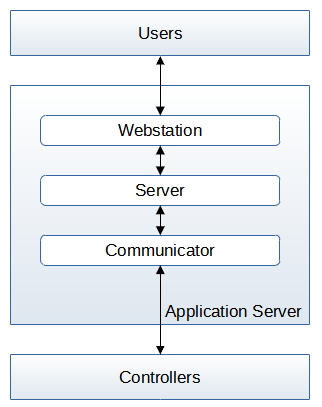
Figure 1 shows a commonly used architecture for a simple system that is deployed in the default installation. An alternative architecture for a distributed system involves deploying different services on separate machines.
Rapid SCADA includes the following main applications:
- Webstation is a web application that displays information to a dispatcher via a browser in tabular form, on diagrams and graphs, and also generates reports.
- Server manages the data archives, performs mathematical calculations and provides information to the client applications.
- Communicator collects data from controllers, diagnoses devices, and transmits information to the Server application over the network.
The following sequence is recommended for general configuration:
- Create a new or open an existing project in the Administrator application.
- Add objects, communications lines and devices into the configuration database. To create communication lines and devices it is recommended to use wizards that are opened using the
 and
and  buttons located on the Administrator’s toolbar.
 - Check that the added communication lines and devices are present in the Communicator settings. If necessary, create them by selecting the Synchronize menu item from the context menu of the Communication Lines node in the project explorer.
- Configure communication with devices in Communicator.
- Create channels in the configuration database. It is recommended to use the wizard opened by the
 button.
 - Create views and specify them in the Views table of the configuration database.
- Upload the project for execution by the
 button.
Project Structure
Three main parts: Configuration Database, Views, and Instances.
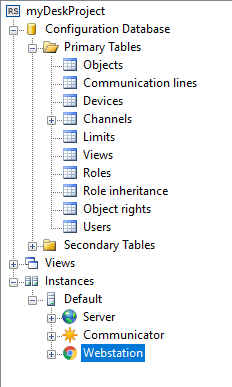
Configuration Database: Consists of tables common to all project instances.
- Primary Tables: Mostly edited during project configuration.
- Objects: Specific locations or logical categories associated with measured data.
- Communication Lines: Includes devices connected sequentially or through the same port.
- Devices: Physical controllers or metering devices. Can also be used to group data logically.
- Channels: Important entities with a number, name, and association with current and historical data and events.
- Limits: Contains channel limits. Limits can be shared across multiple channels or be fixed values.
- Views: Specifies a list of views, which are part of the web interface.
- Roles: Contains standard and custom roles. Role inheritance feature for combining several roles into one.
- Object-Roles Relations: Specifies relations between objects and roles. Defines access type (view or control) for roles.
- Users: Contains usernames and hashed passwords. Changing user ID requires resetting the password.
- Secondary Tables: Important for understanding system operations.
- Archives: Lists types of archives and possible channel statuses.
- Channel Statuses: Contains severity information related to channel status events.
- Channel Types: Important property affecting how channel data is processed and calculated.
- Device Types: List of drivers in Rapid SCADA.
- Formats: For adding custom formats and enumerations.
- Quantities: Custom physical quantities.
- Units: Custom units for channels.
- Scripts: Built-in and custom scripts for calculating channel values.
Views Folder Structure: Folder and file structure for views.Double-clicking a view opens the appropriate editor.
Instances:
An instance is a set of Rapid SCADA applications running the same project and installed on the same computer:
- Server Configuration
- General Options Core settings for the server application. Ensure proper configuration of TCP port and secret key for secure and consistent communication with client applications.
- Modules: Manage additional modules that extend server functionality. Include or exclude specific modules as needed for the project.
- Archives: Contains historical data processed by the server. Essential for data storage and retrieval in SCADA operations.
- Logs: Server log files are critical for diagnosing issues and monitoring server performance.
- Configuration Files: Store settings that are changed using the interface. Important for maintaining consistency and backup of configuration changes.
- Communicator
- General Options: Basic settings for the Communicator application. Ensure correct setup to facilitate communication with the server and other applications.
- Drivers: List of supported drivers and their features. Configure drivers based on the specific needs of the project.
- Data Sources: Interact with other applications such as the SCADA server. Can function as an OPC server, facilitating parallel data source operations.
- Communication Lines: Configure communication lines for device polling and data transmission. Important to check communication line logs for troubleshooting and verification.
- Logs: Log files specific to the Communicator application. Useful for monitoring communication integrity and performance.
- Configuration Files: Store settings related to the Communicator application. Essential for backup and consistency of communication settings
DataBase
A module called ModDbExport provides real-time export of data from devices to popular databases. Microsoft SQL Server, Oracle, PostgreSQL, and MySQL are supported. The Rapid SCADA installation package includes this module, so it does not need to be installed separately. On the Modules page, activate the module and open its properties to configure it.

 Electrical Engineer